Make a 360° product video
Paste a link to a photo of your product. In the app you pick the background, check a clean studio shot, then turn it into a 5 second 360° clip. You can also upload the photo there.
Opens in the Hermoso app with this filled in. Nothing runs until you press Generate, and the app shows the exact price first. Rather ask your AI? Add Hermoso to Claude or ChatGPT and say what you want.
One photo, two clips
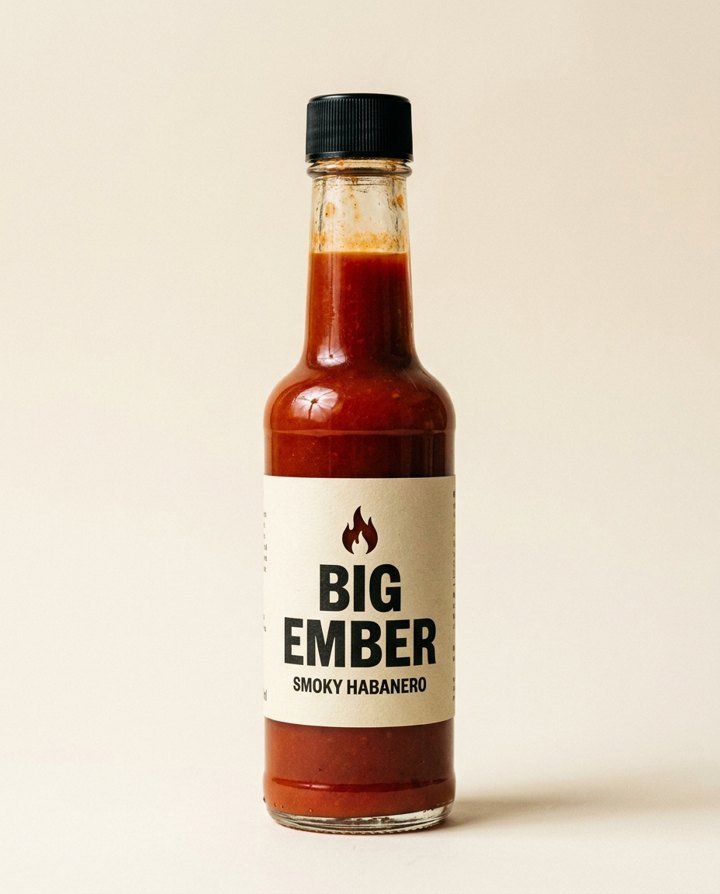
Real outputs of the tools below, made on our own account. Big Ember is a made-up brand.
To make a 360° product video with AI, start from one sharp, front-on photo of the product, ask for a full camera orbit, and keep it to about five seconds so it loops. In Hermoso that is the 3D rotation tool: upload the photo, pick a background, and you get a clip where the camera travels all the way round the product and lands back on the first frame. No turntable, no studio, no reshoot.
The clips above were both made from the single bottle photo on the left. Everything you see of the sides and back was worked out from that one picture, which matters, and is covered in step 4.
First decide what moves: orbit or turntable
There are two kinds of 360° product video, and they look different for a reason. In a turntable the product spins in front of a background that stays still. In an orbit the product stays put and the camera travels round it, so the background sweeps past, the shadow swings and the highlights slide across the surface. The orbit reads as a real camera move. A turntable made by AI tends to look pasted on, because nothing around the product reacts.
Hermoso makes orbits. The format behind it, the packshot orbit (360°), is written so the camera never reverses, never pauses and never changes the product's size in frame, and the last frame matches the first.
How to make it, step by step
- Pick the photo. One clear shot of the front, the whole product in frame, on a plain background, with the label sharp. No hands, no props in front of it. A phone photo by a window is fine. This photo decides how the product looks for the whole clip.
- Open 3D rotation and add the photo. Upload it or paste a link to the image. Pick a background: white studio, soft grey, black, a pastel colour, or describe your own. Pick the shape: 1:1 for a product page or listing, 9:16 for Reels and TikTok, 16:9 for a website banner.
- Check the still, then make it move. The tool first gives you a clean studio shot of the product on that background. If the label or colour is off, fix it there, before any video is made. Then press Make it move and the camera orbits the product for five seconds. The app shows the exact price before each step runs.
- Check the back. One photo only shows the front, so the sides and back are the model's best guess. In our example the back label is invented text. If people will read the back (ingredients, a barcode, a size), shoot the back as well and give both photos to the Studio, or keep the clip short and the back on screen briefly. Watch the whole clip once before you post it.
- Use it. Download the MP4 for your product page or listing, where a five-second loop plays without anyone noticing the seam. Or schedule it to TikTok, Instagram and YouTube from Hermoso, or drop it into a paused ad campaign that spends nothing until you approve it.
Other camera moves from the same photo
Want a half turn, a slow push in or a crane up instead of a full spin? The Camera motion tool takes the same photo and offers a quarter, half or full orbit, plus rise, crane up, push in, pull back and reveal, at 5, 8 or 10 seconds. It starts on your exact photo rather than on a new studio shot, so the setting stays the one you photographed. The 9:16 quarter orbit above came from it.
The same spin as an ad, planned from your brand
If the orbit is going into an ad rather than onto a product page, ask the Hermoso Studio for a packshot orbit of your product. The Studio plans it from your brand profile and your product photos, so the set, the light and the pacing fit the rest of your ads, and you can add a line of copy or an end card if you want one. It is one of the creative recipes the Studio knows by name.
What makes a 360° spin look real
- Something behind the product. A plain wall with a bit of texture or a soft gradient shows the camera moving. A pure flat colour hides it.
- A shadow on the surface. When the camera goes round, the shadow should swing with it. That is the cue that says this was filmed.
- One direction, one speed. The move should not stop, reverse or zoom. Anything else reads as an effect.
- End on the first frame. A spin that finishes where it began loops cleanly on a product page, in a carousel or as a looping ad.
From your AI assistant
With Hermoso connected to Claude, ChatGPT or Cursor, attach the product photo and say "make a 5 second 360° orbit video of this product on a white background". The assistant runs the same full-orbit camera move on your photo and hands back the clip, and it can schedule it or put it in a paused campaign. See MCP & CLI for setup.
Related
Product video maker · AI product photo generator · Packshot orbit (360°) · AI video ad maker · The camera-move model
Frequently asked questions
How do I make a 360 product video?
Take one sharp, front-on photo of the product on a plain background. In Hermoso, open 3D rotation, add the photo, pick a background and shape, check the studio still, then press Make it move. You get a 5 second clip where the camera orbits the product and ends where it started.
Do I need a turntable or a studio?
No. The camera move is generated from a photo, so a phone picture of the product is enough. The product stays still and the camera travels round it, which looks more real than a spinning product in front of a still background.
Can AI make a 360 video from one photo?
Yes. The sides and back are worked out from the one photo, so they are a best guess. If the back has text people will read, shoot the back too and give both photos to the Hermoso Studio, and watch the clip before you post it.
How long is the video?
The 3D rotation tool makes a 5 second orbit, which loops cleanly. The Camera motion tool offers quarter, half and full orbits and other moves at 5, 8 or 10 seconds.
What sizes can I get?
1:1 for product pages and listings, 9:16 for Reels and TikTok, 16:9 for banners, and 3:4 or 4:3.
Is there a free plan?
Yes, with no card. The app shows the exact price before anything runs.
Start free, no card needed. The app shows the exact price before anything runs.
Start free → See pricing